L11: Functions & Blocks
Excuse our mess while we finish this page! You can contribute here.
Overview
In this lesson, students will learn how to create their own custom programming blocks in MicroBlocks.
Custom blocks allow programmers to:
- organize code
- reuse code
- simplify large programs
- create cleaner workspaces
In many text-based programming languages, custom blocks are called:
- functions
- methods
- procedures
Students will create a sound frequency sweep program and then convert the long code into a reusable custom block.
They will also learn:
- how to hide block definitions
- how to show hidden definitions again
- how to add arguments (inputs) to custom blocks
Learning Goals
Students will:
- create custom blocks
- organize large programs
- reuse code
- hide and show block definitions
- add arguments to custom blocks
- understand how functions work in programming
Time Required
45–60 minutes
Materials
- CincoBit or PixoBit
- USB cable
- Computer or Chromebook
- MicroBlocks
Teacher Notes
This lesson introduces:
abstraction and reusable code
Students should understand:
- large programs become difficult to manage
- custom blocks simplify programs
- reusable code is an important programming concept
This lesson connects strongly to:
- loops
- sounds
- variables
- organization
Students are now beginning to think like software developers.
What is a Custom Block?
MicroBlocks includes many built-in blocks such as:
- play note
- repeat
- display image
These blocks were created by other programmers.
Custom blocks allow:
YOU to create your own blocks.
This makes programs:
- easier to read
- easier to reuse
- easier to understand
Why Use Custom Blocks?
Without custom blocks:
- programs become large
- code gets repeated
- projects become difficult to manage
Custom blocks help programmers:
- organize ideas
- simplify projects
- reuse behaviors many times
Professional software systems use thousands of functions and reusable blocks.
Step 1 — Create an Electronic Sound
Students will create an electronic sound using a repeated frequency sweep.
The program:
- starts at a low frequency
- increases gradually
- repeats multiple times
We will use a for loop, which loops with a variable in a range, changing it every step by a specific number. In this case, we are changing i from 500 to 5000 with 50 added in every loop.
start tone frequency will be set to variable i. A small delay is added so we are looping too fast.
Repeat this sweep a few times and you will have a cool electronic sound effect.
Finally, we need to stop the tone.
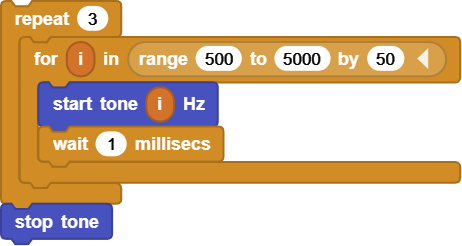
Click on the block to hear the generated sound.
Step 2 — Create a Custom Block
Open:
- My Blocks
Add a command block called make sound.
MicroBlocks will now generate a starting point for our block definition.
Move all earlier sweep code inside the new block definition.
Now the entire program becomes:
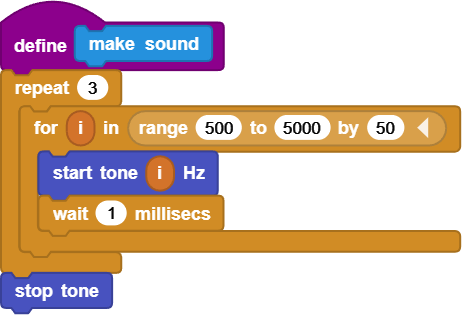
instead of many blocks.
Students should immediately notice:
the workspace becomes much cleaner.
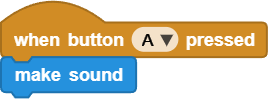
The custom block hides the internal complexity.
Instead of seeing:
- loops
- waits
- tones
- variables
students now see:
one simple command
This concept is called:
abstraction
Programs become easier to understand by hiding unnecessary details.
Step 3 - Adding an Argument
Custom blocks can receive inputs called:
arguments
Arguments allow the block to behave differently depending on the value provided.
Students will add:
- number of sweep repetitions
Go back to the block define and click the small right arrow next to make sound. This will add an argument called foo but you can click on it and rename it to count.
We can now use count. For example, we will drag count argument inside the repeat loop.
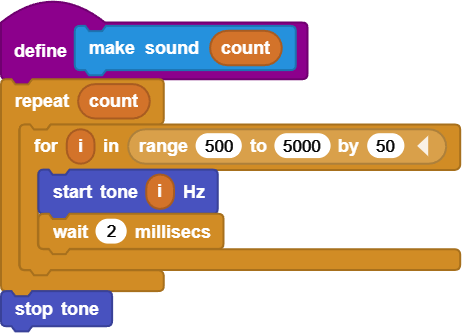
where:
- count becomes an input argument
Students can now call the custom block just like before but this time with a provided count.
The same make sound block now behaves differently depending on the input value.
This makes the custom block:
- more flexible
- more reusable
- more powerful
Understanding Arguments
Arguments allow programmers to:
- customize behavior
- reuse code in different ways
- avoid creating many similar blocks
Examples in real programs:
- draw circle size
- play sound frequency
- move character speed
Arguments make functions dynamic.
Hiding Block Definitions
MicroBlocks allows custom block definitions to be hidden.
Right-click on the block definition and select:
Hide Block Definition
The workspace now becomes even cleaner.
This is useful in large projects where:
- many custom blocks exist
- definitions take up space
- programmers want to focus on the main logic
Showing Hidden Definitions Again
To show the definition again:
-
Open:
My Blockspalette -
Find the custom block
-
Right-click the block
-
Select:
Show Block Definition
Students should practice:
- hiding definitions
- restoring definitions
This helps manage large projects.
Real-World Connection
Custom blocks and functions are used in:
- games
- apps
- robots
- operating systems
- websites
- AI systems
Without reusable functions, modern software would be impossible to manage.
Try It
Can you:
- create different sweep styles
- make a custom melody block
- animate graphics during sounds
- add more arguments
Troubleshooting
- Custom block does not run
- verify code is inside the block definition
- Sweep repeats incorrectly
- check repeat argument value
- Hidden block cannot be found
- look under My Blocks
- Sound behaves strangely
- verify wait timing and frequencies
Vocabulary
| Word | Meaning |
|---|---|
| Custom Block | User-created programming block |
| Function | Reusable section of code |
| Argument | Input sent to a block |
| Reusable Code | Code used multiple times |
| Abstraction | Hiding complexity |
Wrap-Up Question
Why are custom blocks useful in large programs?