L4: Variables & Math
Excuse our mess while we finish this page! You can contribute here.
Overview
In this lesson, students will learn how computers store information using variables.
Students will use variables to:
- count button presses
- store numbers
- update values
- perform simple math
Using the on button press event blocks from the previous lesson, students will build interactive programs that change over time as buttons are pressed.
Students will also explore how computers use math operations such as:
- addition
- subtraction
- multiplication
- division
Learning Goals
Students will:
- understand what variables are
- store and update numbers
- count button presses
- use math with variables
- display changing values
- build interactive programs
Time Required
30–45 minutes
Materials
- CincoBit or PixoBit
- USB cable
- Computer or Chromebook
- MicroBlocks
Teacher Notes
Variables are one of the most important concepts in programming.
Students should understand:
Variables allow programs to remember information.
Examples of variables in real programs:
- scores in games
- player health
- timers
- temperatures
- counters
- money balances
This lesson keeps the focus on:
- event-driven programming
- changing program state
- simple math operations
What is a Variable?
A variable is a named-place where a program stores information.
Variables can change while the program runs.
Think of a variable like:
- a labeled box
- a scoreboard
- a container for information
Example:
score = 5
The variable named score currently stores the number 5.
Step 1 - Create a Counter
From the variable palette, click Add a variable and give your variable name count.
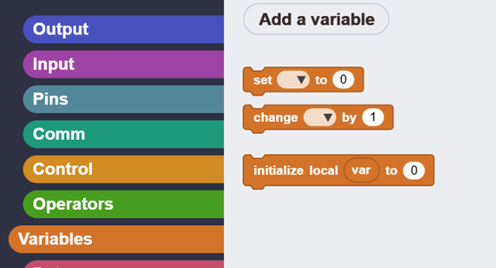
Newly create variables always start with their value set to zero.
You now use set to to set a variable to a number, or use change to increment the number.
Now use when button pressed to increase the count.
Each button press should:
- add 1 to the variable
- display the new value
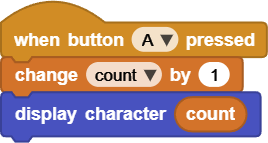
The display character block only shows one character. When showing number 0 to 9 it works fine, but when it tries to print 10, you will see 1 only. as 0 is out of the screen area. Can you solve this problem? Hint: Scroll the text!
Step 2 - Add Two Numbers
Programs can perform math using variables. The change block is adding a number to whatever value the variable is holding, and then storing the results in the same variable.
Example: count = count + 1
This means:
- take the current value
- add 1
- store the new result
If:
count = 3
then after adding 1:
count = 4
Computers can perform many types of math.
| Operation | Example |
|---|---|
| Addition | 3 + 2 |
| Subtraction | 10 - 4 |
| Multiplication | 5 * 3 |
| Division | 12 / 2 |
We will increment different variables from pushing A and B buttons. We then show the sum of both variables when both buttons A+B are pressed.
Create two variables like we did before: count1 and count2. Increment the right variable when buttons are pressed. The scroll text the sum of both numbers when both buttons are pressed.
The sum math operator is found under Operators palette.
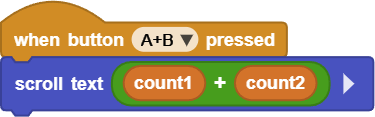
Students can experiment with:
- different numbers
- subtraction
- multiplication
Understanding Program State
Variables help programs remember what happened earlier.
Without variables:
- programs forget information immediately
With variables:
- programs can track changes over time
Examples:
- score keeping
- timers
- player lives
- temperatures
- sensor values
Try It
Can you:
- count backward
- count by 5s
- create a score tracker
- add two button counters together
Challenge
Create a simple score system:
| Button | Action |
|---|---|
| A | Add 1 point |
| B | Add 5 points |
Display the total score after every press.
Real-World Connection
Variables are used everywhere in computing.
Examples:
- video game scores
- bank balances
- weather apps
- shopping carts
- GPS navigation
- fitness trackers
Programs constantly store and update information using variables.
Troubleshooting
- Counter does not change
- verify the variable is updated inside the event block
- Wrong numbers appear
- check math operations carefully
- Display does not update
- ensure the display block runs after changing the variable
Vocabulary
| Word | Meaning |
|---|---|
| Variable | A place to store information |
| Value | Information stored in a variable |
| Addition | Combining numbers |
| Counter | A variable that tracks changes |
| State | Information remembered by a program |
Wrap-Up Question
Why are variables important for games and interactive programs?