L3: Algorithms & Events
Excuse our mess while we finish this page! You can contribute here.
Overview
In this lesson, students will learn how computers follow step-by-step instructions called algorithms.
Students will explore the concept of:
- input
- process
- output
using the on button pressed event block in MicroBlocks.
When a button is pressed, the program will react by displaying graphics, text, or sounds on the device.
Students will also learn how comments help programmers explain and organize their code.
Learning Goals
Students will:
- understand what an algorithm is
- learn the input → process → output model
- use event blocks
- react to button presses
- display output on the screen
- add comments to code
Time Required
30-45 minutes
Materials
- CincoBit or PixoBit
- USB cable
- Computer or Chromebook
- MicroBlocks
Teacher Notes
This lesson introduces one of the most important ideas in computer science:
Computers react to inputs by processing information and generating outputs.
Students should begin recognizing that:
- buttons
- sensors
- touch pads
- keyboards
- cameras
are all forms of input.
Programs then make decisions and produce outputs such as:
- lights
- graphics
- sounds
- movement
What is an Algorithm?
An algorithm is a set of step-by-step instructions used to solve a problem or complete a task.
Examples of algorithms:
- brushing teeth
- making a sandwich
- following a recipe
- directions on a map
Computers also follow algorithms exactly as programmed.
Input → Process → Output
Most computer systems follow this pattern:
| Step | Meaning |
|---|---|
| Input | Information enters the system |
| Process | The computer makes decisions or calculations |
| Output | The system responds |
Examples:
| Input | Process | Output |
|---|---|---|
| Button press | Run program logic | Display image |
| Light sensor | Compare brightness | Turn on pixels |
| Temperature reading | Check value | Play warning sound |
Step 1 - Create an Event
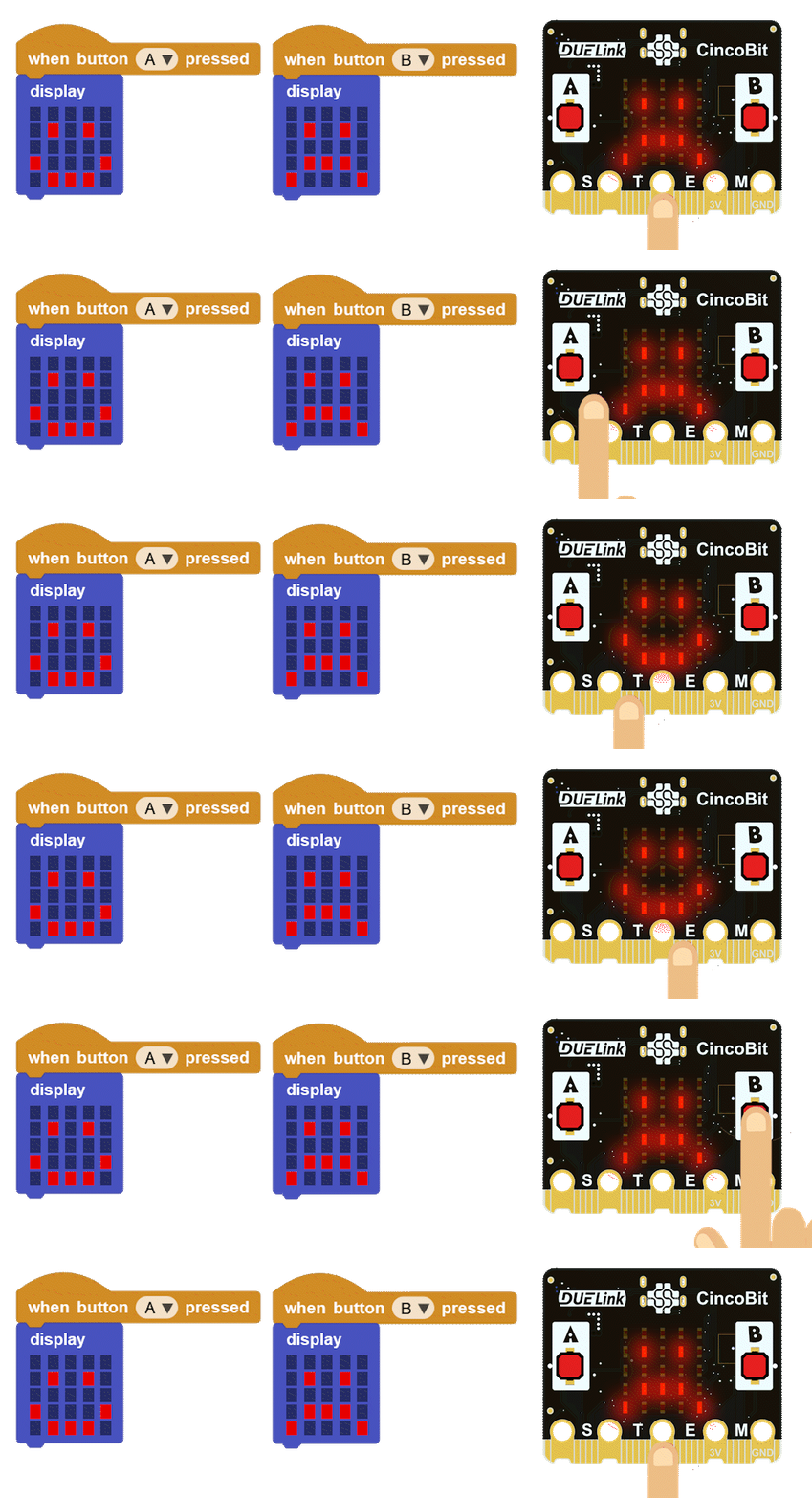
In MicroBlocks, programs can react to events. From under Control, find and drag the on button press block. This block waits for the user to press a button before running the code inside it.
We will need 2 of them. We will select A for one and B for the other.
Step 2 - Add Output
When the button is pressed:
- display an image
- show text
- play a sound
- animate pixels
In this example, we will use the display block to show sad and happy faces!
PixoBit Alternative
When the button is pressed:
- display text
- draw shapes
- animate graphics
Ideas:
- “Hello!”
- a bouncing ball
- changing icons
Understanding Events
An event is something that happens that causes a program to respond.
Examples:
- button pressed
- timer expires
- touch detected
- sensor changes
Event-driven programming is used in:
- games
- phones
- websites
- appliances
- cars
Adding Comments
Comments help programmers explain their code.
Comments are ignored by the computer but help humans understand programs.
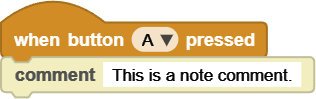
Good comments explain:
- what the code does
- why something happens
- important details
Examples:
- “Show happy face when button A is pressed”
- “Play sound if room becomes dark”
Encourage students to comment their projects clearly.
Try It
Can you:
- display a different image for each button
- play a sound when pressed
- create a tiny animation
- display your initials
Challenge
Create a mini reaction system:
| Input | Output |
|---|---|
| Button A | Smiley face |
| Button B | Sad face |
Real-World Connection
Event-driven systems are everywhere.
Examples:
- elevator buttons
- doorbells
- game controllers
- touch screens
- keyboards
- smart devices
Computers constantly wait for inputs and respond with outputs.
Troubleshooting
- Button does nothing
- verify the correct event block is used
- check device connection
- Wrong output appears
- check code inside each event block
- Program runs unexpectedly
- verify blocks are attached correctly
Vocabulary
| Word | Meaning |
|---|---|
| Algorithm | Step-by-step instructions |
| Input | Information entering a system |
| Process | Computer decision or calculation |
| Output | Result produced by the system |
| Event | Something that triggers code |
| Comment | Notes added to explain code |
Wrap-Up Question
What are some inputs and outputs you use every day without thinking about them?