L8: Coordinates
Excuse our mess while we finish this page! You can contribute here.
Overview
In this lesson, students will learn how computers use coordinates to position objects on a screen.
Students will explore:
- the X and Y coordinate system
- how displays are organized into rows and columns
- how to place and remove pixels
- how to move objects around the screen
Using buttons, students will control the position of a pixel on CincoBit or move an image on PixoBit.
Students will also combine previous concepts such as:
- variables
- conditions
- events
- loops
to keep objects inside the visible display area.
Learning Goals
Students will:
- understand X and Y coordinates
- identify where (0,0) is located
- use
plotandunplot - store coordinates in variables
- move objects using buttons
- display coordinate values
- use conditions to keep objects on screen
Time Required
45–60 minutes
Materials
- CincoBit or PixoBit
- USB cable
- Computer or Chromebook
- MicroBlocks
Teacher Notes
This lesson introduces one of the most important ideas in graphics and game programming:
Everything on a screen has a position.
Students should understand:
- screens are organized using coordinates
- X controls left and right movement
- Y controls up and down movement
- variables can store positions
- programs can move objects dynamically
This lesson creates the foundation for:
- animation
- games
- graphics
- object movement
Understanding Coordinates
Displays use a coordinate system to identify locations.
Coordinates use:
- X values
- Y values
Usually referred to as (x, y)
The X axis controls:
- left and right position
| Direction | X Value |
|---|---|
| Left | Smaller X |
| Right | Larger X |
The Y axis controls:
- up and down position
| Direction | Y Value |
|---|---|
| Up | Smaller Y |
| Down | Larger Y |
Where is Origin?
On computer systems, the coordinate:
(0,0)
is located at the:
- top-left corner of the display
This is called:
the origin
While this is true on most systems, the LED Display library uses (1,1) for origin.
CincoBit Coordinate Grid
CincoBit uses a 5×5 LED matrix.
Coordinates range from:
| Axis | Values |
|---|---|
| X | 1 to 5 |
| Y | 1 to 5 |
Example positions:
| Coordinate | Location |
|---|---|
| (1,1) | Top-left |
| (5,1) | Top-right |
| (1,5) | Bottom-left |
| (5,5) | Bottom-right |
Plot and Unplot
Students will use:
| Block | Purpose |
|---|---|
plot | Turn on a pixel |
unplot | Turn off a pixel |
lights a pixel at a specific coordinate.
Step 1 - A Pixel Show
The random block will be used to show a vertical line of pixels. We will randomly plot and unplot pixels in that specific line.
The generated vertical random line lives at a set x position. Random will be used on the y position.
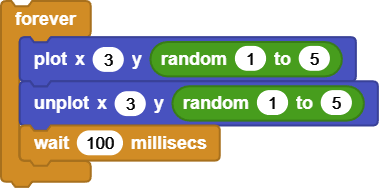
We used 3 for x. This starts the pixel near the center.
Step 2 - Move the Show
Use button events to change the X coordinate.
Example:
| Button | Action |
|---|---|
| Button A | Move left |
| Button B | Move right |
We used 3 as a fixed 'x' position. We will now use a variable instead. This variable will decrease when A is pressed and increase when B is pressed.
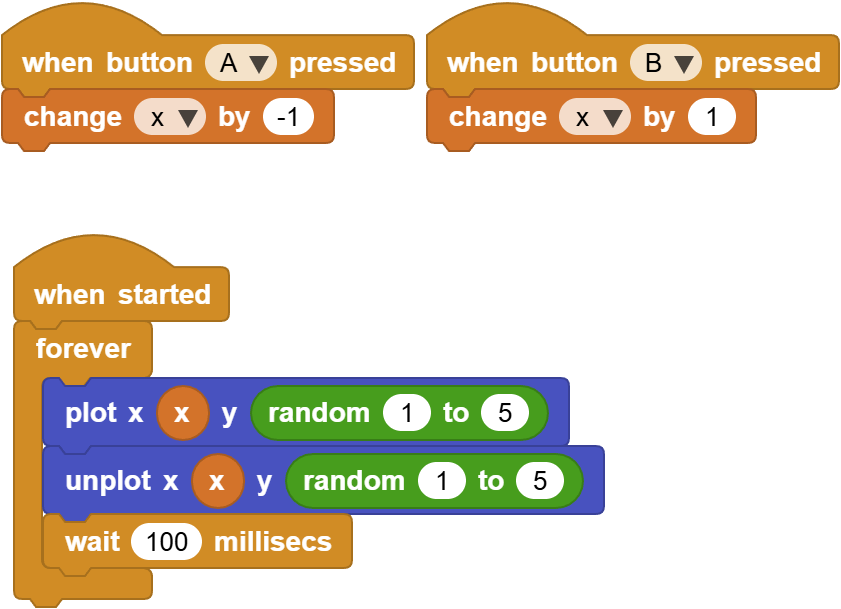
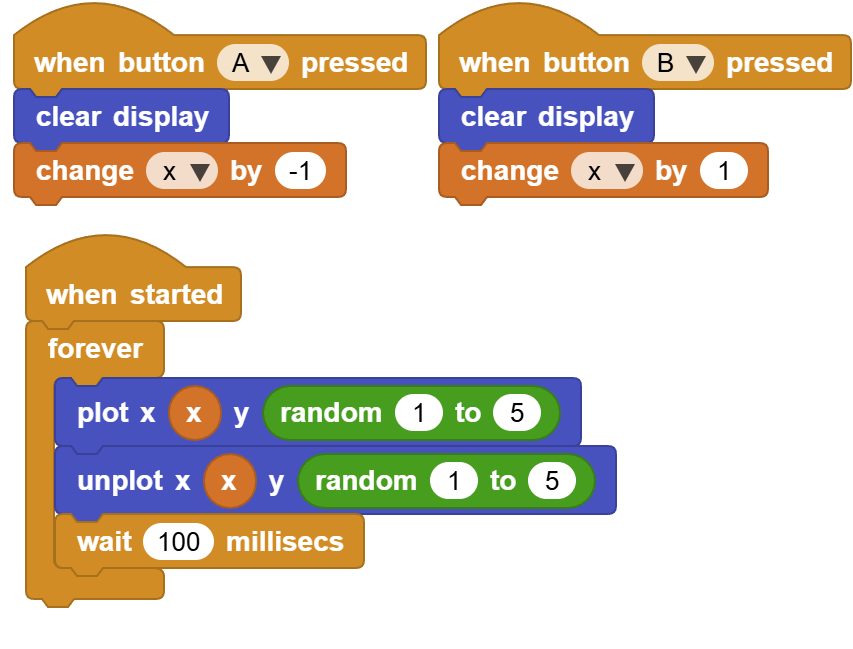
Since new variables start with their value set to 0 and the screen first pixel is at 1, running this program will not show anything on the screen. Press B to move the line one spot to the right.
You will also notice that the new line drawing did not clear the previous line. This might be a desired behavior to do full screen of random art. But, if you need the screen cleared when a button is pressed then that can be accomplished easily.
Step 3 - Keep the Pixel On Screen
What happens if:
- X becomes negative?
- X becomes larger than the screen width?
The object can move off the display.
Programs often use conditions to keep objects visible. Use if statements to check boundaries.
We will set the x to 3 from the start, in when started event. This will take care of the initial position. Then the buttons events will only increase/decrease x if x is not going to be less than 1 or more than 5.
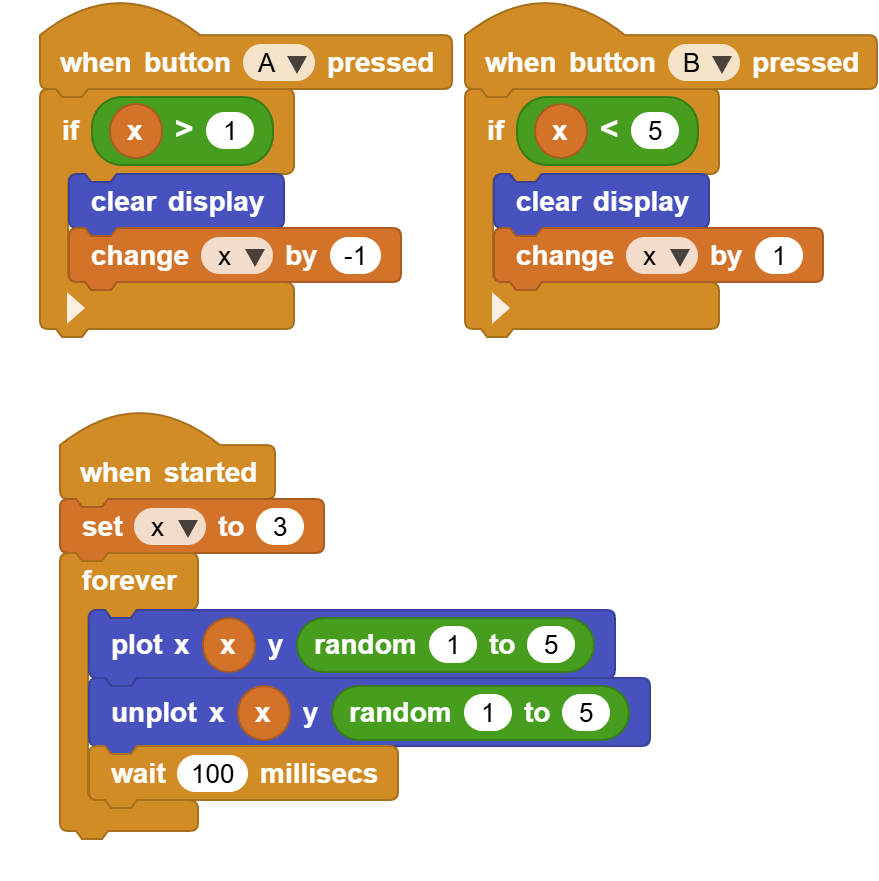
This keeps the pixel inside the display.
Understanding Movement
Changing coordinates changes object position.
| Change | Result |
|---|---|
| Increase X | Move right |
| Decrease X | Move left |
| Increase Y | Move down |
| Decrease Y | Move up |
This is how:
- games
- animations
- robots
- user interfaces
control movement.
Try It
Can you:
- fly pixels up instead of random
- create diagonal movement
- move faster
- bounce a pixel
Real-World Connection
Coordinate systems are used everywhere in computing.
Examples:
- video games
- phone screens
- maps
- robots
- GPS systems
- graphic design software
Computers constantly track positions using X and Y values.
Troubleshooting
- Pixel disappears
- check coordinate limits
- verify plot/unplot order
- Movement leaves trails
- unplot old position before moving
- Pixel moves off screen
- verify boundary conditions
Vocabulary
| Word | Meaning |
|---|---|
| Coordinate | Position on a screen |
| X Axis | Left and right position |
| Y Axis | Up and down position |
| Origin | Starting coordinate |
| Plot | Turn on a pixel |
| Unplot | Turn off a pixel |
Wrap-Up Question
Why do games and graphical programs need coordinates?