L5: Conditions & Decisions
Excuse our mess while we finish this page! You can contribute here.
Overview
In this lesson, students will learn how computers make decisions using conditions.
Programs often need to ask questions such as:
- Is a button pressed?
- Is a number larger than 5?
- Is the room too dark?
- Is a touch pad being touched?
Computers answer these questions using conditions that become either:
- TRUE
- FALSE
Students will use:
ifstatements- comparison operators
- variables
- random numbers
- touch sensing
to create interactive programs and build a Rock Paper Scissors game.
Learning Goals
Students will:
- understand TRUE and FALSE conditions
- compare numbers and variables
- use
ifstatements - detect touch input on Pin 1
- generate random numbers
- build a simple decision-based game
Time Required
30–45 minutes
Materials
- CincoBit or PixoBit
- USB cable
- Computer or Chromebook
- MicroBlocks
Teacher Notes
This lesson introduces one of the most important ideas in computer science:
Computers make decisions by checking conditions.
Students should understand:
- conditions evaluate to TRUE or FALSE
- programs compare numbers and variables
ifstatements only run code when a condition is TRUE
This lesson combines:
- logic
- variables
- events
- touch sensing
- randomness
into a complete interactive project.
What is a Condition?
A condition is a question that has only two possible answers:
- TRUE
- FALSE
Examples:
- Is 10 greater than 5?
- Is the button pressed?
- Is the score equal to 100?
Programs use these answers to decide what to do.
TRUE and FALSE
Conditions are evaluated by the computer.
Examples:
| Question | Result |
|---|---|
| Is 5 greater than 3? | TRUE |
| Is 2 greater than 10? | FALSE |
| Is 7 equal to 7? | TRUE |
| Is 4 less than 1? | FALSE |
Comparison Operators
Programs compare numbers and variables using comparison operators.
| Operator | Meaning |
|---|---|
= | equal to |
> | greater than |
< | less than |
Examples:
| Expression | Result |
|---|---|
score > 10 | TRUE if score is larger than 10 |
count = 5 | TRUE only if count is exactly 5 |
temperature < 20 | TRUE if temperature is below 20 |
Using IF Statements
An if statement tells the computer:
“Only run this code if the condition is TRUE.”
Example:
if score > 5
If the condition is TRUE:
- code inside the block runs
If the condition is FALSE:
- the code is skipped
Step 1 - Using Variables with Conditions
Create a variable called score. If not sure how, go back to the Variables lesson. Bring in the set block into the workspace to set the variable to 7.
Add if block from the Control palette, and inside of it add the "larger than" block > from the Operators palette.
You can now add whatever blocks inside the if block to execute only if the evaluation is TRUE. In this case it is true, as the score is more than 5.
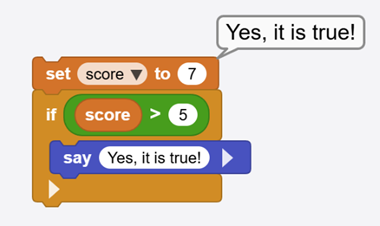
We used the say block from the output palette. This block is useful for "Debugging", for checking and seeing what the program is doing. It will only do something when the device is connected to MicroBlocks.
Remember, you can simply click on the blocks to run them.
Because 7 is greater than 5:
- the condition becomes TRUE
- the code inside the
ifblock runs - the
sayblock will execute and show the text.
The if block also allows for running blocks if the condition is FALSE. In English: if condition is true then do this, else do that.
Click on the little arrow at the bottom of the if block. This will reveal the else block. We will change score to 4, which is less than 5.
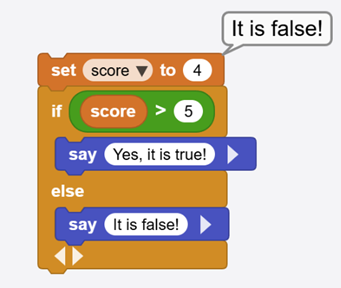
Try changing the value of score and observe the outcome. What do you think will happen if score is set to 5?
Step 2 - Random Numbers
Computers can generate random values.
Random numbers are used in:
- games
- dice
- simulations
- selecting winners
Generate a random number:
- between 1 to 10
- check if the number is more than 5
saythe results
The random block found under Operators palette returns a random number between 2 values. You can just click on the block to run it and see what values it is returning. Change the 2 limit value to see what numbers can be generated.
Go to the previous sample and use a random number to set the variable.
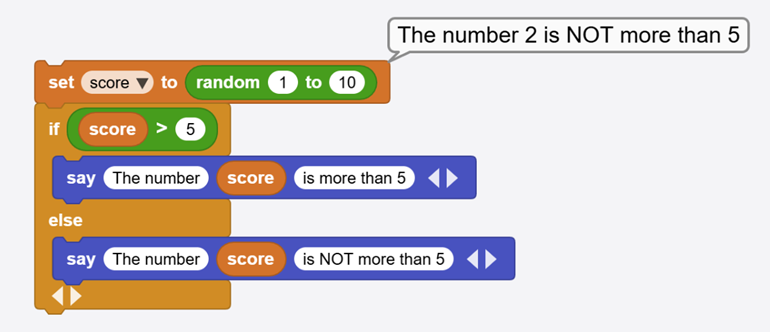
We also used multiple items with the say block this time. You can do that by clicking the little right arrow on the say block.
Step 3 - Rock Paper Scissors
Students will build a simple game.
When A is pressed:
- generate a random number
- check the value using
ifstatements - display:
- Rock
- Paper
- Scissors
Example Game Logic:
| Random Number | Result |
|---|---|
| 1 | Rock |
| 2 | Paper |
| 3 | Scissors |
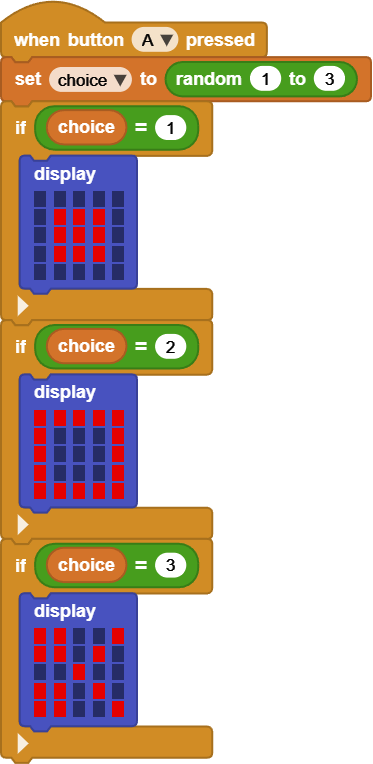
PixoBit Version
Display:
- graphics
- scrolling text
- animated results
Ideas:
- “ROCK!”
- “PAPER!”
- “SCISSORS!”
Students can create:
- menus
- scoreboards
- animated transitions
Understanding Decision Making
Computers constantly evaluate conditions and make decisions.
Examples:
- automatic doors
- elevators
- thermostats
- games
- traffic lights
- phones
Programs react differently depending on whether conditions are TRUE or FALSE.
Troubleshooting
- Wrong game result appears
- check comparison values carefully
- Nothing happens
- verify there is a running loop
- check what is inside the
ifblock
Vocabulary
| Word | Meaning |
|---|---|
| Condition | A TRUE/FALSE question |
| TRUE | Condition matches |
| FALSE | Condition does not match |
| IF Statement | Runs code only when a condition is TRUE |
| Comparison Operator | Checks values |
| Random Number | A value chosen unpredictably |
Wrap-Up Question
Why are conditions important for games and interactive devices?