L6: Iterations & Loops
Excuse our mess while we finish this page! You can contribute here.
Overview
In this lesson, students will learn how computers repeat actions using loops.
Programs often need to repeat tasks many times:
- blinking lights
- playing music
- animations
- checking sensors
- game logic
Instead of writing the same code repeatedly, programmers use iteration blocks such as:
repeatrepeat untilforever
Students will also learn how timing works using the wait block and understand how computers measure time in milliseconds.
Using loops, students will create repeating sounds and simple musical patterns.
Learning Goals
Students will:
- understand iteration
- use repeat loops
- use forever loops
- use repeat until loops
- understand milliseconds
- control timing with wait blocks
- play notes and sounds in loops
Time Required
30–45 minutes
Materials
- CincoBit or PixoBit
- USB cable
- Computer or Chromebook
- MicroBlocks
Teacher Notes
This lesson introduces one of the most important programming concepts:
Computers are very good at repeating tasks.
Students should understand:
- loops reduce repeated code
- timing controls program speed
- programs can repeat forever or stop under certain conditions
This lesson also introduces:
- musical timing
- delays
- repeated patterns
What is Iteration?
Iteration means repeating a set of instructions.
Examples from everyday life:
- clapping 10 times
- brushing each tooth
- walking steps
- repeating a chorus in a song
Programs often repeat instructions many times.
Why Use Loops?
Without loops, programmers would need to write the same code over and over.
Loops make programs:
- shorter
- cleaner
- easier to change
Instead of running:
play note
play note
play note
play note
a loop can repeat play note 4 times.
Repeat Loop
The repeat block runs code a specific number of times.
The instructions inside this loop will run exactly 5 times.
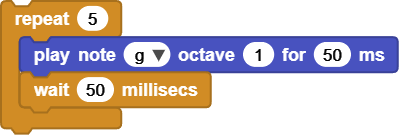
We added a wait pause between notes. Remove the wait to hear the difference. Without waits, loops run extremely fast.
This can cause:
- flashing too quickly
- sounds blending together
- animations moving too fast
Wait blocks help humans:
- see changes
- hear sounds clearly
- understand timing
Things get a lot more interesting when combining variables with loops. This allows us to repeat a task but then each loop will be different.
Students can use repeat loops to:
- blink LEDs
- play sounds
- animate graphics
Understanding wait Blocks:
Computers measure time very precisely.
MicroBlocks uses:
- milliseconds
A millisecond is:
- one thousandth of a second
| Time | Milliseconds |
|---|---|
| 1 second | 1000 ms |
| Half second | 500 ms |
| Quarter second | 250 ms |
Forever Loop
A forever loop never stops unless the program is stopped. A reminder here is that MicroBlocks is live connection. Click on blocks to run or, in case of loops, to also stop.
Example uses:
- alarm systems
- clocks
- animations
- sensor monitoring
CincoBit and PixoBit edge pads can detect touch.
Students will use:
- Pin 1
- touch sensing
- an
ifstatement
to create an interactive response.
Touch sensing also creates TRUE/FALSE conditions.
| Condition | Result |
|---|---|
| Pin 1 touched | TRUE |
| Pin 1 not touched | FALSE |
Touch sensing block is due pin touched found inside DUELink Edu library.
In previous lessons, we use an event block, which automatically run when an event happens, like when A is pressed. The due pin touched is not an event, but it is a reporting block. Using this block will check and report the touch status at that very instance. If touch was pressed right before or right after when the block executes will result in no touch. We have to repeatedly check if there is touch. In code, this is called polling.
Our program will start on power up using when started. You can also click on the "play" icon on the top right. In this program, we have a forever loop that always checks if pin 1 is touched to play note C for 50ms.
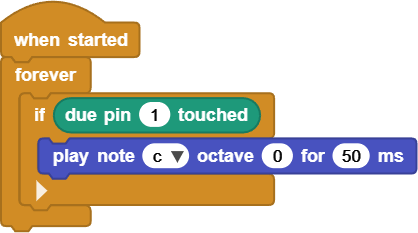
Run the program and touch pin 1, which is the large pad on CincoBit or PixoBit.
You will notice that the note is playing over and over when touched. Maybe we want to play the note only once per touch. We can accomplish this by waiting for the touch to be released. The DUELink Edu library includes due wait for pin release to handle exactly that.
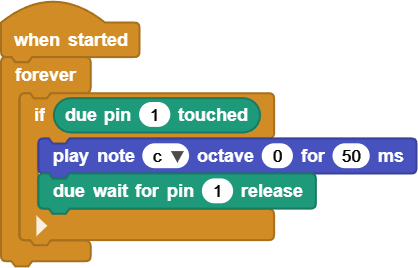
Activity — Stop the Music
Create a loop that:
- repeatedly plays a note
- waits 500 ms
- continues until Pin 1 is touched (can you figure out
repeat untilon your own?)
Students combine:
- loops
- conditions
- timing
- sound
into one interactive project.
Understanding Timing:
Changing wait times changes how programs feel.
Examples:
| Wait Time | Result |
|---|---|
| 100 ms | Very fast |
| 500 ms | Medium speed |
| 1000 ms | Slow |
Students should experiment with different delays and observe how the behavior changes.
Try It
Can you:
- create faster rhythms
- blink patterns
- alternate sounds
- create repeating animations
Real-World Connection
Loops are used everywhere in computing.
Examples:
- game loops
- traffic lights
- alarm systems
- music players
- clocks
- robots
Programs constantly repeat tasks and monitor conditions.
Troubleshooting
- Sounds play too quickly
- increase wait time
- Loop never stops
- verify the stop condition
- Animation flashes too fast
- add a wait block
Vocabulary
| Word | Meaning |
|---|---|
| Iteration | Repeating instructions |
| Loop | Code that repeats |
| Polling | Repeatedly check something |
| Repeat | Runs code a set number of times |
| Forever Loop | Runs continuously |
| Repeat Until | Repeats until a condition becomes TRUE |
| Millisecond | One thousandth of a second |
Wrap-Up Question
Why are loops useful for music, games, and animations?