.NET

The .NET DUELink library allows full .NET programs to access physical sensors and actuators. This allows complex .NET programs to do all the heavy lifting.
Note that .NET will be executed on a compatible supported hardware, like a PC for example. .NET does not run on the module itself! The Standalone page shows some options that run on modules directly.
For .NET on circuits, see SITCore product line on the GHI Electronics website.
Note that the provided library is implemented in C#, but the user can use any .NET system, such as Visual Basic.
Getting Started
Visit loader.duelink.com to make sure your hardware is USB connected and has the latest DUELink Official firmware and related module drivers.
We assume that you are already familiar with .NET C# and there is a development machine that is already setup to build and run .NET programs. Start a new project with a simple line of code to test that the project is running.
C# Top-level-statements feature is being utilized in these examples.
Console.WriteLine("Hello, World!");
You now need install the latest GHIElectronics.DUELink library from NuGet.org.
The first program will blink the on-board status LED on a tethered module, on for 200ms then it shuts off for 800ms, and does this 20 times.
using GHIElectronics.DUELink;
Console.WriteLine("Hello DUELink!");
var availablePort = DUELinkController.GetConnectionPort();
var duelink = new DUELinkController(availablePort);

// Flash the LED  (on for 200ms, off for 800ms, 20 times)
// Note that "Device 1" is automatically selected
duelink.System.Statled(200, 800, 20);
Console.WriteLine("Bye DUELink!");
The .NET library supports serial ports, which can be either UART or USB. The GetConnectionPort() function scans for a USB-connected DUELink module. You can also use a specific serial port number, for example using DUELinkController("COM6") on Windows and DUELinkController("/dev/ttyAMA0") on Linux. Using serial is useful with wireless Bluetooth connections.
Daisylinking
DUELink modules can be Daisylinked together. The duelink.Engine.Select() function is used to select the module to be listening to incoming commands.
In the example below, we'll use .NET to control an OLED Display, a Button, and a Buzzer.
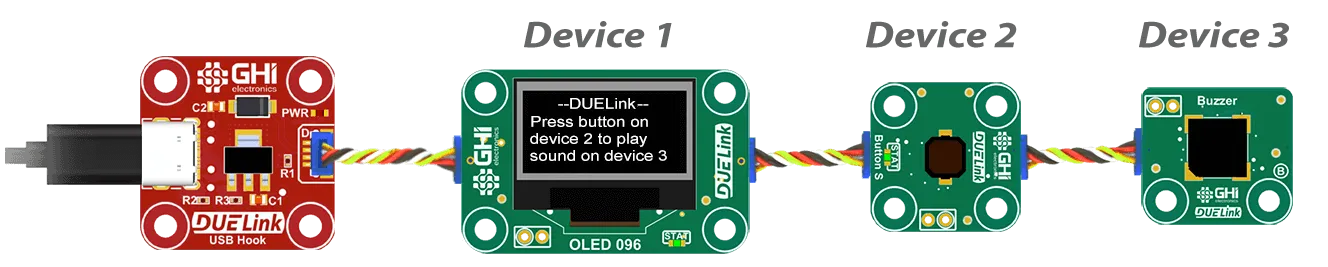
Visit loader.duelink.com to "discover" modules and load the latest firmware and drivers.
using GHIElectronics.DUELink;

var availablePort = DUELinkController.GetConnectionPort();
var duelink = new DUELinkController(availablePort);

// Device 1 is Display OLDE 0.96, with driver installed!
// Device 2 is button
// device 3 is buzzer
duelink.ReadTimeout = TimeSpan.FromMilliseconds(100);
duelink.Engine.Select(1);
duelink.Graphics.Clear(1);
duelink.Graphics.Text("DUELink", 0, 10, 10);
duelink.Graphics.Text("Press button on", 0, 1, 21);
duelink.Graphics.Text("device 2 to play", 0, 1, 31);
duelink.Graphics.Text("sound on device 3", 0, 1, 41);
duelink.Graphics.Show();

duelink.Engine.Select(2);
duelink.Button.Enable(1, 0);

while (true) {
    duelink.Engine.Select(2);
    if (duelink.Button.Down(1)) {
        duelink.Engine.Select(3);
        duelink.Frequency.Write(7, 1000, 50, 0.5);
    }
    Thread.Sleep(100);
}
Code Samples
Individual product pages include specific code samples that utilize the module's Driver Script.
See Tethered Samples under individual module pages.